A knowledge base is one of those projects that looks finished long before it starts working. Articles get written, a search box appears, the launch is announced, and six months later support volume is unchanged, because the people who needed those articles never found them, and the ones who did found a screenshot of an interface that no longer exists.
The difference between a knowledge base that deflects tickets and one that just exists is almost never the writing. It is structure, titling, maintenance and distance: how the content is arranged, whether the titles match what a stuck person would type, whether anyone owns each article, and how far a user has to travel from the question to the answer.
Key Takeaways
- A knowledge base is organised around the user's question; documentation is organised around the product.
- Three levels maximum, and top-level categories named after jobs, not modules.
- Six article types cover everything, and mixing two types in one article is the most common quality failure.
- Title articles as the question people search, not the feature they land on.
- Every article needs an owner and a review date, or the whole base quietly rots.
- Prune ruthlessly. One wrong article teaches users to distrust every other one.
- Distance kills self-service: the closer the answer sits to the moment of confusion, the more it resolves.
What Is a Knowledge Base?
Knowledge base (definition): an organised, searchable library of articles that answers the questions people have about a product without requiring a conversation. An external knowledge base serves customers; an internal one serves employees, most often support agents who need a single canonical answer quickly.
What distinguishes a knowledge base from a folder of documents is that every article has a declared type, a declared audience, an owner and a review date, and the whole collection is arranged so that somebody who does not share your vocabulary can still reach the right page. Without those four properties you have a wiki, and wikis decay in a predictable and well-documented way.
Where it sits among the neighbouring things
These terms get used interchangeably and the confusion is expensive, because each one implies a different structure and a different owner.
| Thing | Organised around | Typical reader | Success looks like |
|---|---|---|---|
| Knowledge base | The question a stuck person has | A customer mid-task | They resolve it and stop reading |
| Product documentation | The product's own structure | Someone evaluating or implementing | Complete, accurate coverage |
| Help centre | The container, usually a knowledge base plus contact routes | Anyone seeking help | The right path taken quickly |
| In-app support | The screen the user is on | A customer who has not left the product | The ticket never gets opened |
| Customer education | A curriculum | Someone deliberately learning | Capability increases over time |
A useful test for any article: if the title matches a screen name, it is documentation; if it matches something a customer would type into a search box, it is knowledge base content. Both are legitimate and they often live on the same site, but writing one while believing you are writing the other is how help centres end up full of pages nobody searches for.
The Six Article Types (and the Shape Each One Needs)
Every useful knowledge base article is one of six things. The failure mode is mixing them: a how-to that pauses for three paragraphs of architecture loses the person who only wanted step four, and a concept explainer padded with click-by-click instructions is unreadable by the person trying to understand the model.
The first session. Not a feature tour: the shortest path to one real result, for someone who has never seen the product.
One job, start to finish. The workhorse of any knowledge base and usually 60% of it.
The model a user must hold in their head before the how-tos make sense: permissions, workspaces, billing cycles.
Organised by symptom, never by cause. Users know what they saw, not what went wrong.
Limits, field definitions, supported formats, keyboard shortcuts. Scanned, never read.
Billing, data handling, security, retention. Read by people who need certainty, often before buying.
One article, one job. If an article needs two of these shapes, it is two articles that should link to each other. This single rule fixes more knowledge base quality problems than any style guide.
Structuring a Knowledge Base That Scales
Structure is where knowledge bases fail silently. Everything works at thirty articles. At three hundred, an architecture organised around your product's internal modules becomes a maze, because customers do not know which module their problem belongs to; that is precisely why they are looking for help.
Three levels, named after jobs
Keep the top level between five and nine categories. Fewer, and each one becomes a bucket that means nothing; more, and people read the entire menu before choosing, which is its own kind of failure. Then resist the urge to file each article in exactly one correct place. Content that answers a question approached from three directions should be reachable from all three; cross-linking is cheaper and more honest than a taxonomy debate.
Two structural mistakes worth naming
- Mirroring your org chart. If your categories match your team boundaries, customers pay the cost of your internal structure. They do not know which team owns "workspaces".
- A "Miscellaneous" or "FAQ" category. It always becomes the largest one, and by definition nobody browses to it. Every article in it belongs somewhere real.
How to Build a Knowledge Base in 7 Steps
- Start from your ticket volume, not from your feature list
- Choose the top-level categories from the jobs you found
- Write the top twenty articles before building anything else
- Give every article a type and a template
- Title everything as the question, not the feature
- Assign an owner and a review date to each article
- Put the answers where the questions happen
1. Start from your ticket volume, not from your feature list
Export the last few months of support conversations and group them by what was actually being asked. This gives you a ranked list of real questions, which is a far better starting point than an inventory of features, and it is the same coding exercise described in the customer feedback analysis guide. The top twenty questions usually account for most of your volume.
2. Choose the top-level categories from the jobs you found
Let the categories fall out of the grouped questions rather than deciding them in advance. If half your tickets are about getting data in and out, "Importing & exporting" is a category, whatever your product calls that area internally.
3. Write the top twenty articles before building anything else
Not the platform, not the theme, not the search configuration: the articles. Twenty accurate answers to the twenty most common questions will deflect more tickets than two hundred comprehensive pages, and writing them first tells you what the structure needs to be.
4. Give every article a type and a template
Pick from the six types above and use the same shape every time. Consistent structure makes articles faster to write, far faster to scan, and much easier to maintain, because anyone can see at a glance what is missing. If you also produce longer-form material, the user guide examples cover the formats that work outside the knowledge base.
5. Title everything as the question, not the feature
This is the highest-leverage single change available. Users search with symptoms and outcomes; titles written in product vocabulary never match. Rewrite them:
6. Assign an owner and a review date to each article
An article with no owner is an article that will be wrong within a year. Put the owner's name and the next review date in the article's metadata, and wire a reminder into whatever system your team already lives in. Reviews that exist only as a badge on the page do not happen.
7. Put the answers where the questions happen
The last step is the one that decides whether any of the previous six pay off, covered in its own section below.
Writing Rules That Make Articles Usable
Knowledge base articles are not read; they are scanned by someone who is mildly annoyed and in a hurry. Write for that person.
-
Answer in the first two lines
State the answer, then explain. If the answer is "you can't", say so immediately and follow with the workaround; burying a no is how you generate an angry ticket.
-
One action per step
A step containing "and then" is two steps. Numbered lists are for doing; paragraphs are for understanding.
-
Use the words on the screen
If the button says "Publish", never write "deploy". The same microcopy discipline that governs the product should govern the help content.
-
Screenshots only where they disambiguate
Every screenshot is a maintenance liability with a shelf life. Use one where a control is genuinely hard to find, not to decorate a step.
-
End with an exit
"Still stuck?" plus a route to a human. An article that dead-ends is worse than no article, because the user has already spent the effort.
Why People Don't Find What You Wrote
Search is where most knowledge bases lose. Not because the engine is bad, but because of a vocabulary mismatch: your articles are indexed on the words you chose, and users type the words they experienced.
| Symptom | What is really happening | Fix |
|---|---|---|
| High search usage, low article opens | Results are irrelevant or titles are unrecognisable | Retitle as questions; add customer-vocabulary aliases |
| Frequent zero-result searches | Content gap, or a term you never use internally | Read the zero-result log weekly; it is a free content backlog |
| Users open five articles per session | Nothing is answering the question fully | Consolidate fragments into one complete answer |
| Search works, tickets don't fall | People are not searching at all; they never reach the help centre | Surface the answer inside the product, at the moment of confusion |
The zero-result log is the single most under-used asset in customer support. It is a list of questions, written by customers, in their own words, that you have not answered, and it renews itself every week for free.
Keeping It Alive: Ownership, Decay and Pruning
Knowledge bases do not fail suddenly. They degrade one shipped UI change at a time, and the damage compounds: a user who follows a wrong article does not conclude that one page is stale, they conclude the help centre is unreliable and stop trying.
Three maintenance habits that work
Tie updates to releases. When a screen changes, the articles that show that screen should appear on the release checklist. This is the only mechanism that reliably catches decay at the moment it is created rather than months later.
Prune on a schedule. Once a quarter, list every article with no opens in a year and delete or merge it. Smaller knowledge bases perform better; fewer near-duplicates means better search results for everything that remains.
Let support edit directly. The person who just answered the question is the person who knows what the article was missing. If updating an article requires a ticket to another team, it will not happen.
✅ Do
- Title articles as the question a customer types
- Give every article one job and one shape
- Organise troubleshooting by symptom
- Read the zero-result search log weekly
- Delete articles nobody opens
- Put an escape hatch to a human at the end
- Surface articles inside the product, in context
❌ Don't
- Mirror your product's module names in the navigation
- Create a "Miscellaneous" or catch-all FAQ category
- Screenshot every step; each one is a future liability
- Nest categories more than three levels deep
- Publish without an owner and a review date
- Measure success by article count or page views
- Make the help centre the only place answers exist
Knowledge Base Metrics Worth Tracking
| Metric | What it actually tells you | How to read it |
|---|---|---|
| Self-service resolution | Share of help sessions ending without a ticket | The headline number: everything else explains it |
| Search success rate | Share of searches that lead to an article opening | Low means a titling problem, not a content problem |
| Zero-result queries | Questions you have not answered | Treat as a content backlog, ranked by frequency |
| Theme deflection | Whether tickets on a topic fall after publishing | The only proof an article did its job |
| Article helpfulness | Relative quality signal | Use as a ranking, never as an absolute score |
A heavily viewed article can be bad news. If thousands of people read "why is my export empty" every month, the article is working and the product is not. Knowledge base traffic is a map of your product's confusing places; read it that way, and the top ten articles become a product backlog rather than a content achievement.
Closing the Distance Between the Question and the Answer
A knowledge base only pays off if people reach it. The realistic sequence for a stuck user is: hesitate, look around the screen, try one more thing, then decide between finding the help site and opening a ticket. Every step of travel loses people, which is why the same article performs completely differently depending on where it is offered.
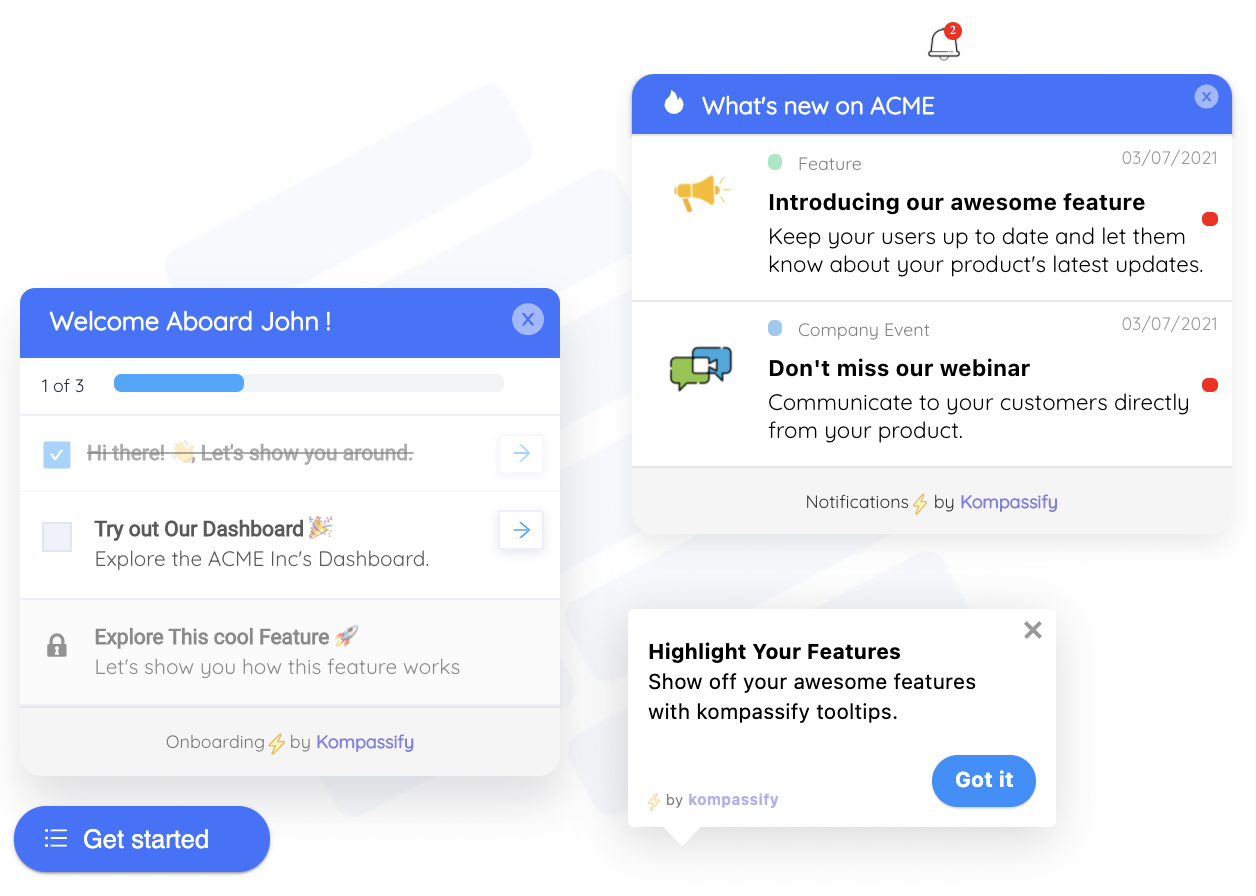
Kompassify lets you close that distance without shipping product code:
- Answer in place. Attach a tooltip or a hotspot to the control people keep asking about, so the short answer never requires leaving the screen.
- Turn your top article into a walkthrough. The most-read how-to in most knowledge bases is a multi-step task; as a product tour it happens in the product instead of in a second browser tab.
- Route by context. Offer the articles relevant to the current screen and segment, rather than a single generic help link that lands everyone on the homepage.
- Guide the first session. Pair your getting-started category with an onboarding checklist that survives across sessions, so new users are not reading about setup while doing setup.
- Measure what got used. Built-in analytics show which in-product answers were opened and completed, so you learn which knowledge base topics deserve to become guidance.
Kompassify is GDPR compliant and EU-hosted, free for under 100 monthly active users, with paid plans from $129/month. You can also try a live demo to see contextual help behave in a real product.
Bring Your Best Articles Into the Product
A knowledge base only deflects tickets if people reach it in time. Kompassify adds contextual tooltips, hotspots, product tours and onboarding checklists to your existing product with no code, so the answer appears on the screen where the question happens, targeted to the right segment, with analytics to prove it worked. GDPR compliant, EU-hosted, and free for under 100 monthly active users.
Start for Free →Frequently Asked Questions
What is a knowledge base?
A knowledge base is an organised, searchable library of articles that answers the questions people have about a product, without them needing to ask a human. An external knowledge base serves customers; an internal one serves employees, most often support agents who need a canonical answer fast. What separates a knowledge base from a folder of documents is structure: every article has a type, a stated audience, an owner and a review date, and the whole set is arranged so that somebody who does not know your vocabulary can still land on the right page.
What is the difference between a knowledge base and documentation?
Documentation is organised around the product; a knowledge base is organised around the user's question. Documentation aims to describe every capability completely and is usually written by the team that built the feature, in the order the system is structured. A knowledge base aims to resolve a specific problem quickly and is written in the order a stuck person thinks. The two overlap and often live on the same site, but the test is easy: if an article's title matches a screen name it is documentation, and if it matches something a customer would type into a search box it is knowledge base content.
How do you structure a knowledge base?
Three levels, no more. Top level: five to nine categories named after jobs rather than product modules: getting started, importing data, billing, permissions, troubleshooting. Second level: sections inside each category. Third level: the articles themselves. Anything deeper becomes unnavigable, and anything wider than about nine top-level categories forces people to read the whole menu before choosing. Cross-link generously between articles instead of trying to place each one in the single perfect location, because the perfect location does not exist for content that answers questions from several directions.
What types of article belong in a knowledge base?
Six cover almost everything: getting-started guides for the first session, task how-tos that solve one job in numbered steps, concept explainers for things users must understand before acting, troubleshooting articles organised by the symptom rather than the cause, reference pages for limits, fields and specifications, and policy answers for billing, security and data questions. Mixing types inside a single article is the most common quality problem: a how-to that pauses to explain architecture loses the person who just wanted step four.
Why can't users find articles in our knowledge base?
Usually because the articles are titled in your vocabulary rather than the customer's. Users search with symptoms and outcomes ("export not working", "invoice wrong") while articles are titled with feature names and internal terminology. The fixes are unglamorous: title articles as the question people ask, add the words customers actually use as searchable aliases, read your own search logs weekly for queries that returned nothing, and make sure the failed searches produce a route to a human rather than an empty page.
How do you keep a knowledge base from going out of date?
Give every article a named owner and a review date, and treat a missed review as a real task rather than a badge on the page. Wire article updates into your release process so a shipped UI change flags the articles that show that screen. Prune aggressively: an article nobody has opened in a year is a maintenance cost with no return, and deleting it makes everything around it easier to find. A small, accurate knowledge base beats a large, half-stale one, because one wrong article teaches users to distrust all the others.
What metrics should you track for a knowledge base?
Four are enough. Self-service resolution: the share of sessions that end without a ticket being opened. Search success: the share of searches that lead to an article being opened, and the list of queries that return nothing. Article-level helpfulness, read as a ranking rather than an absolute score. And ticket deflection on your top themes: whether the volume of a given question falls after you publish the article that answers it. Page views alone measure traffic, not resolution, and a heavily viewed article can be a sign that something in the product is broken.
Should a knowledge base be available inside the product?
Yes: the distance between the question and the answer is what decides whether self-service works. A user who has to leave the product, find the help site, search it and translate the result back to their screen will often open a ticket instead. Surfacing the relevant article inside the product, next to the thing being asked about, converts far more attempts into resolutions. With a no-code platform like Kompassify you can put contextual guidance and links to the right article on the exact screen where the question comes up, targeted by segment, without a release cycle. Kompassify is GDPR compliant and EU-hosted, free for under 100 monthly active users, with paid plans from $129/month.