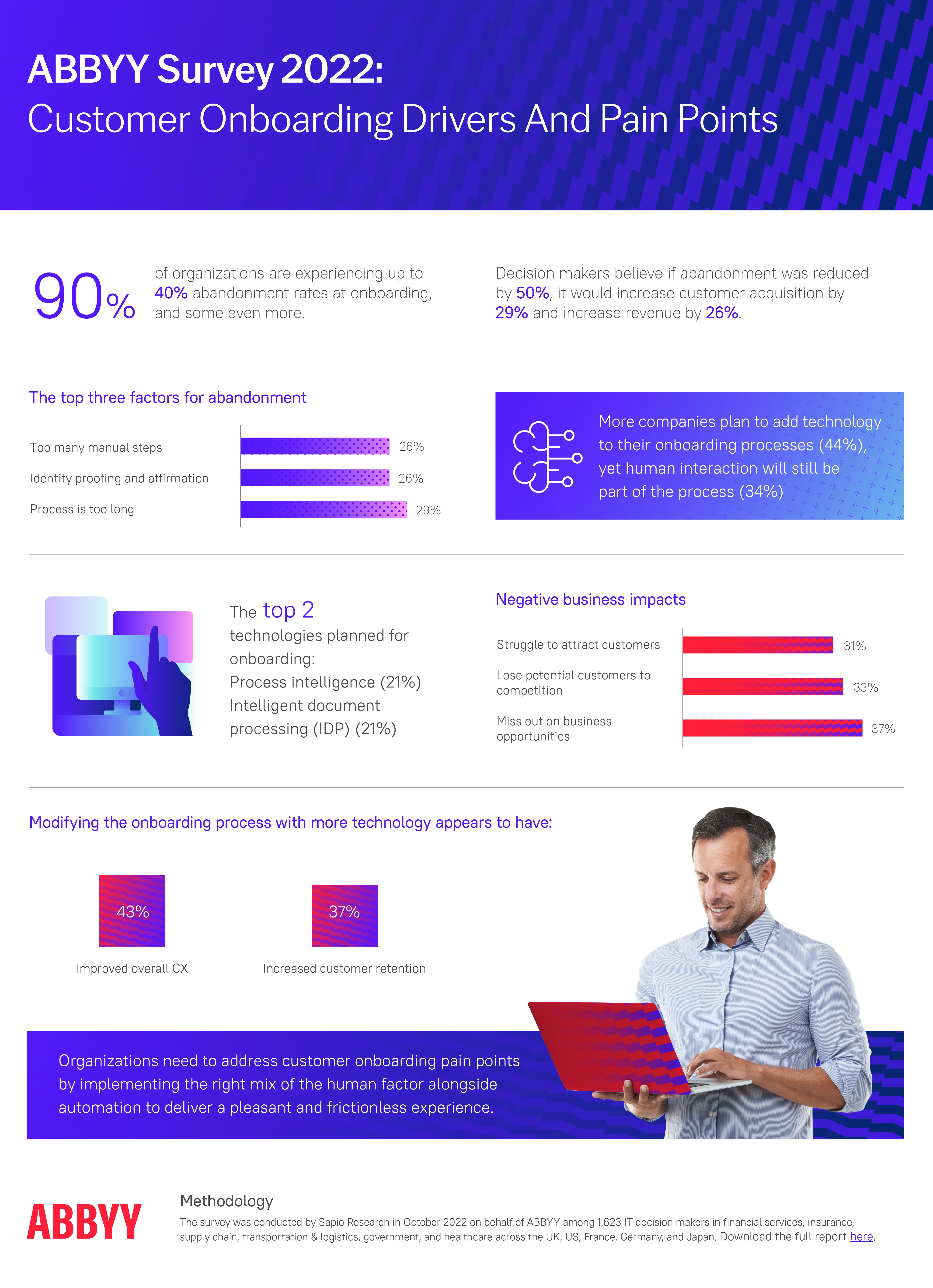
According to ABBYY's State of Automation Report, 9 in 10 companies experience up to 40% abandonment during onboarding. Nearly half of new users walk out the door before they have understood what your product does for them.
The fix is not a longer help doc or a more detailed email sequence. It is a well-designed product walkthrough: one that meets users inside your product, at exactly the right moment, and guides them to their first real win.
This guide covers everything: what makes a walkthrough effective, which UI patterns to use and when, a proven 6-step creation framework, 10 best practices you can apply right now, real examples from products doing it well, and the mistakes that quietly kill activation rates.
Key Takeaways
- Start with the aha moment. Every step in your walkthrough should move users closer to the moment they realize the value of your product. Strip out everything else.
- Keep flows short. 3–7 steps is the sweet spot. For complex products, split walkthroughs by feature rather than trying to show everything in a single flow.
- Personalize by role or goal. Users who receive a walkthrough tailored to their use case reach activation faster than those shown a generic flow.
- Use contextual triggers. Walkthroughs triggered by user behavior outperform those launched on a time-based schedule every single time.
- Always offer a skip option. Forcing confident users through a walkthrough creates friction and resentment.
- Iterate relentlessly. Track step-level drop-off data and treat your walkthrough like a product feature, ship it, measure it, improve it.
What Is a Product Walkthrough?
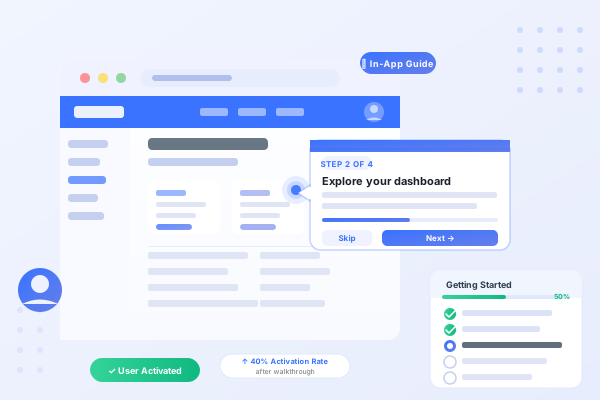
A product walkthrough is an interactive, in-app experience that guides users through the specific steps they need to take to complete key tasks within your product. Think of it as a personal guide that lives inside your software, appearing at the right moment, pointing to the right thing, and asking users to take real action before moving on.
The defining characteristic of a walkthrough is that it is interactive. Users must actively do something, click a button, fill in a field, navigate to a feature, before the next step appears. This is what makes it so much more effective than passive documentation at building genuine product understanding and durable habits.
Why does interactivity matter? Research in educational psychology consistently shows that people retain information far better when they actively complete a task than when they passively consume it. Product walkthroughs exploit this: instead of showing users where a feature is, they make users use it, and that hands-on experience is what makes knowledge stick.
Product walkthroughs can take many forms depending on what you are trying to achieve. They range from a simple 3-step tooltip sequence guiding a user through their first action, all the way to a fully branching, role-specific onboarding flow that adapts based on answers given at sign-up. The format matters less than the principle: guided, active, and focused entirely on delivering value.
Why Product Walkthroughs Matter
Before getting into how to build one, it is worth being precise about what a well-designed walkthrough actually delivers for your business.
Higher activation rates
Activation is the moment a new user takes their first meaningful action inside your product. It is the point at which they stop being a sign-up and start being a user. Without any guidance, a large portion of people who create an account will poke around briefly, hit a moment of confusion or friction, and quietly leave. They never experience the value that made them sign up in the first place. A product walkthrough closes that gap by giving users a clear, immediate path to their first win. Instead of relying on users to figure out where to go and what to do, you show them, and you make it easy enough that they actually do it.
Shorter time to value
Time to value is one of the most critical metrics in SaaS. Every hour that passes between sign-up and the aha moment is a window in which a user can churn. The longer that window stays open, the more likely they are to get distracted, lose interest, or simply forget about your product. A well-designed walkthrough compresses that window by eliminating the wrong turns and dead ends that slow users down. Rather than letting them wander, you route them directly to the actions that make your product click. The goal is not just to get users through onboarding. It is to get them to value as fast as possible.
Reduced support load
Every support ticket answered is time your team is not spending on building, improving, or selling. Many of the most common support queries ("how do I set up X," "where is the Y feature," "why is Z not working") exist because users were never properly shown how to do those things in their first session. A walkthrough that covers the most common friction points proactively can dramatically reduce the volume of repetitive inbound queries. That is not just a cost saving. It is a signal that your onboarding is doing its job.
Better feature adoption
Most users only discover a fraction of what any given product can do. Features that are not surfaced during onboarding, or during the first visit to a relevant section of the product, tend to stay undiscovered indefinitely. Contextual walkthroughs triggered the first time a user enters a new feature area solve this directly. They surface capabilities at exactly the moment users are most likely to engage with them, turning passive users into active ones and increasing the breadth of product usage over time.
Higher retention and lifetime value
Retention is downstream of activation. Users who reach their aha moment in the first session are significantly more likely to come back for a second, and a third. Over time, that translates into longer subscriptions, higher lifetime value, and lower churn. A joint study by Forrester and Adobe found that experience-driven businesses see nearly twice the annual growth in customer retention, repeat purchase rates, and customer lifetime value compared to those that are not. A product walkthrough is not just a UX nicety. It is a retention investment.
Actionable behavioral data
When you instrument a walkthrough properly, you gain access to a level of behavioral insight that passive product analytics cannot provide. You can see not just that users dropped off somewhere in the onboarding flow, but exactly which step they abandoned, how long they spent on each one, and where they went next. That step-level data is a map of friction. It tells you where to focus your product and onboarding improvements for maximum impact.
Types of Product Walkthroughs and UI Patterns
A walkthrough is a strategy, not a single format. There are several ways to execute one, and the best choice depends on the complexity of your product and the task you are guiding users through.
-
Interactive Tooltip Sequences
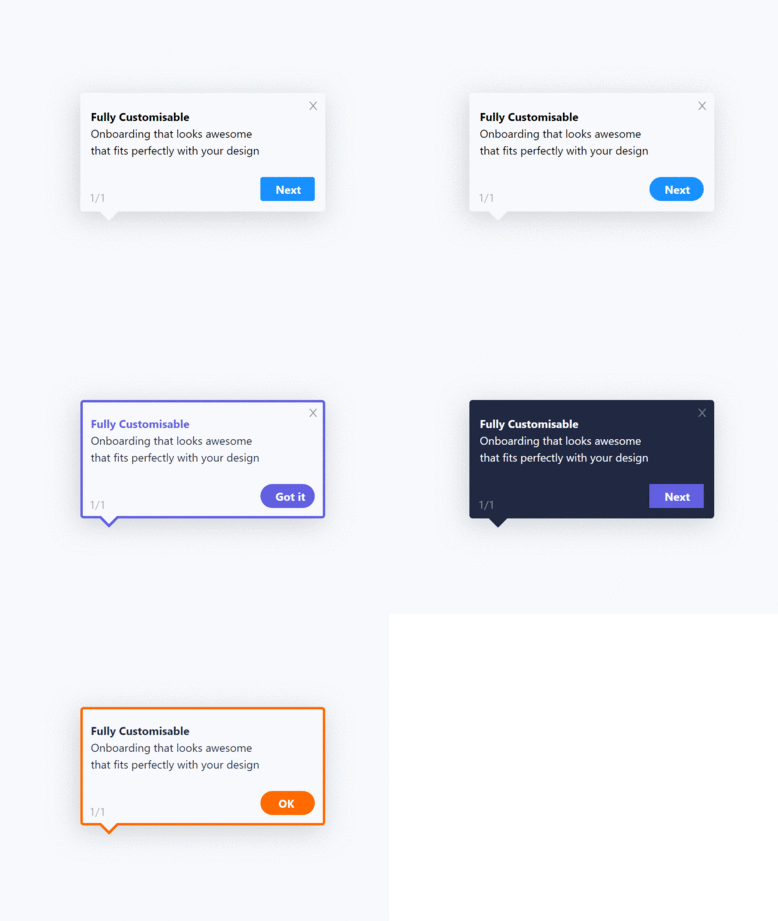
The most common format. A tooltip appears anchored to a specific UI element, instructs the user to interact with it, and advances once the action is completed. Best for guiding users through linear, multi-step flows where there is a clear path to value.
-
Hotspot Beacons
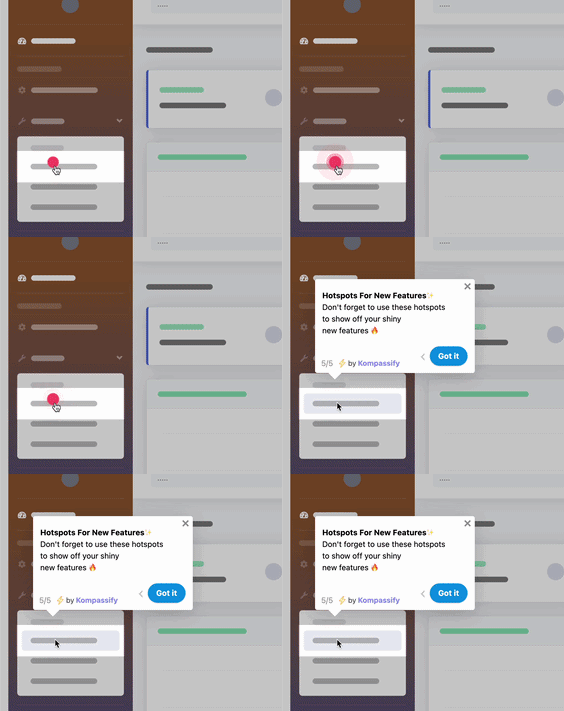
Small pulsing indicators attached to UI elements that draw attention without blocking the interface. Ideal for pointing out new features or updates without forcing users through a rigid guided flow, they invite exploration rather than dictating it.
-
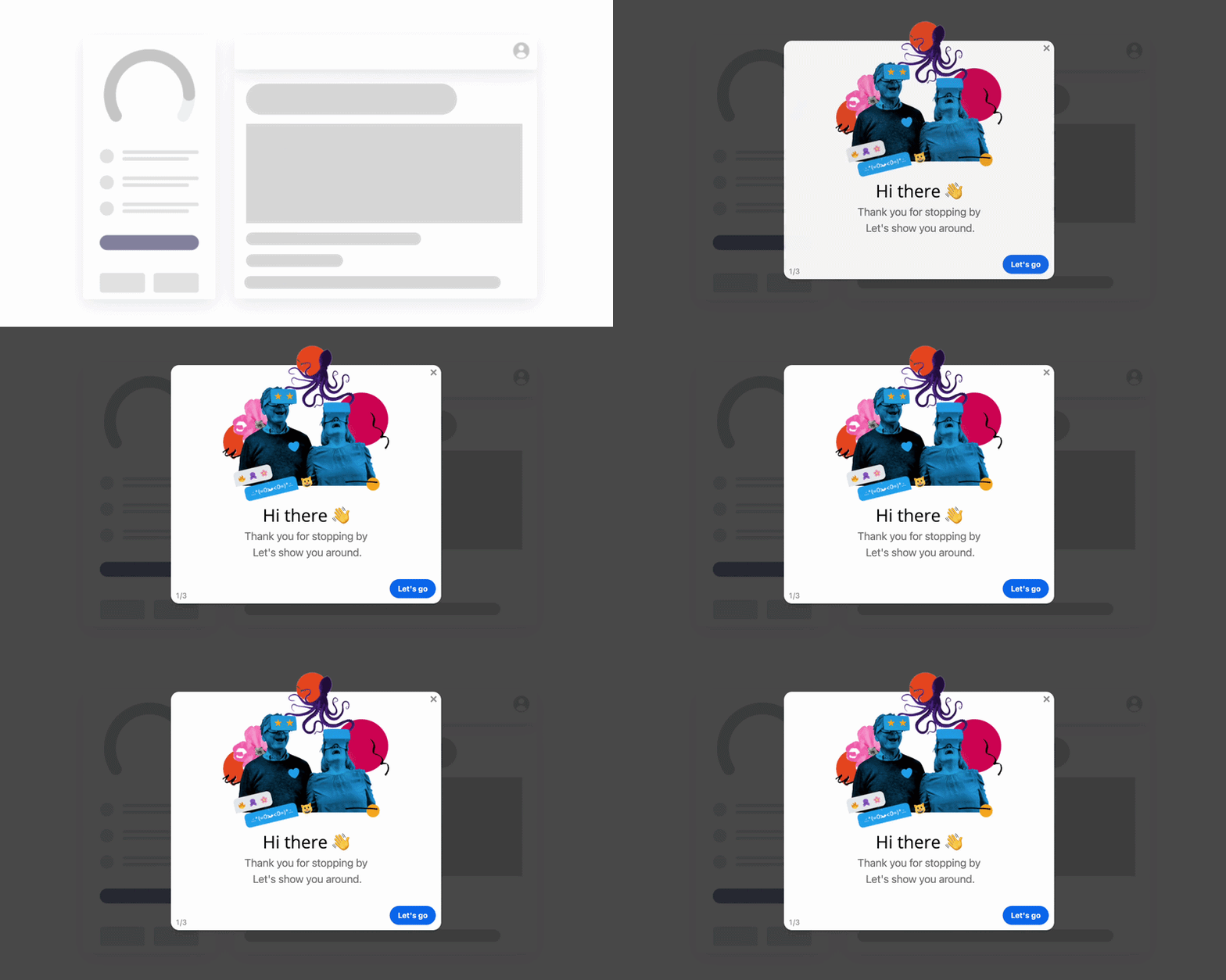
Modal Pop-ups
Full-screen or overlay modals that appear at key moments, first login, entering a new section, or at a new feature release. Most effective for welcome steps, important announcements, or setup flows that require focused attention before the user can proceed.
-
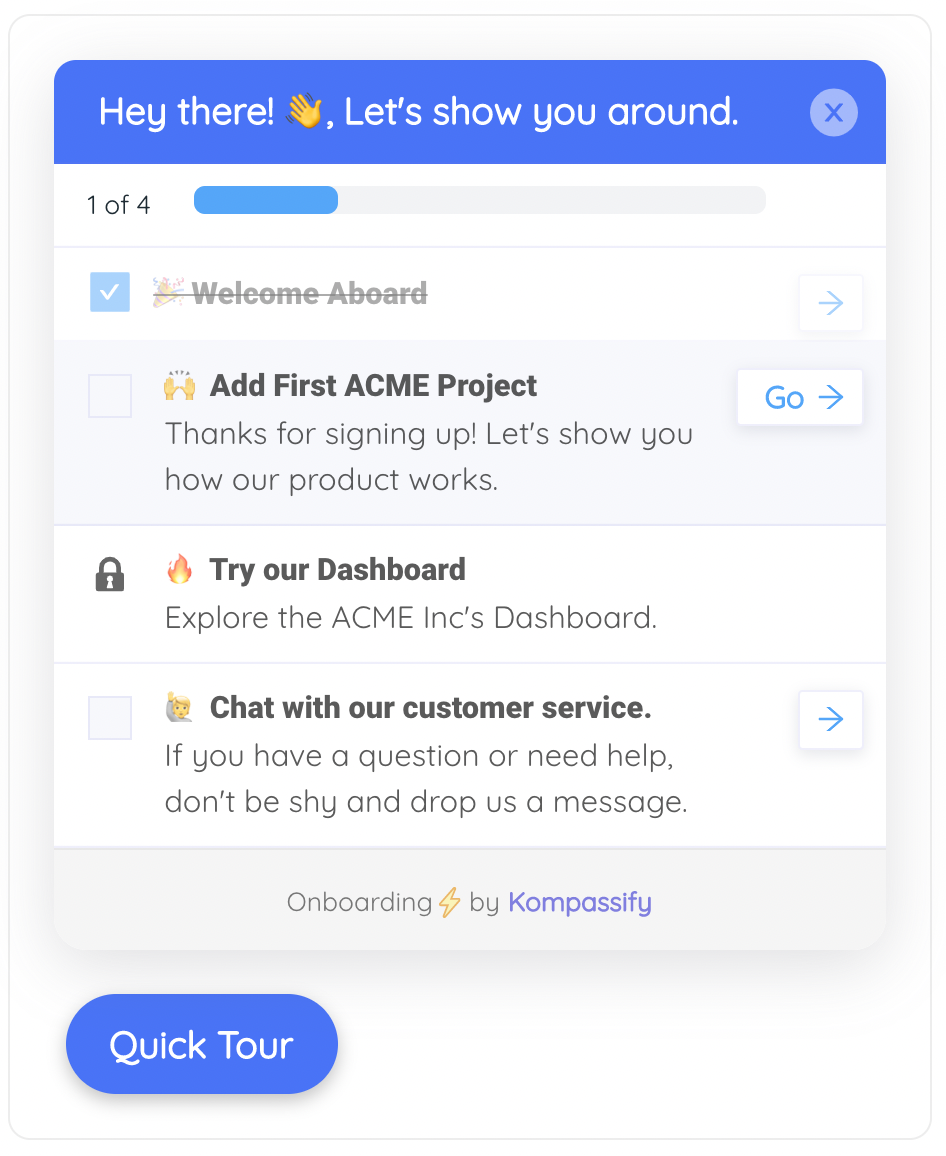
Onboarding Checklists with Progress Bars
A persistent panel showing users a list of key actions to complete, each linked to a short walkthrough. The progress bar gamifies the flow and creates momentum. Respond.io's checklist starts at 0% and fills as users complete tasks, a simple mechanic that meaningfully increases flow completion.
-
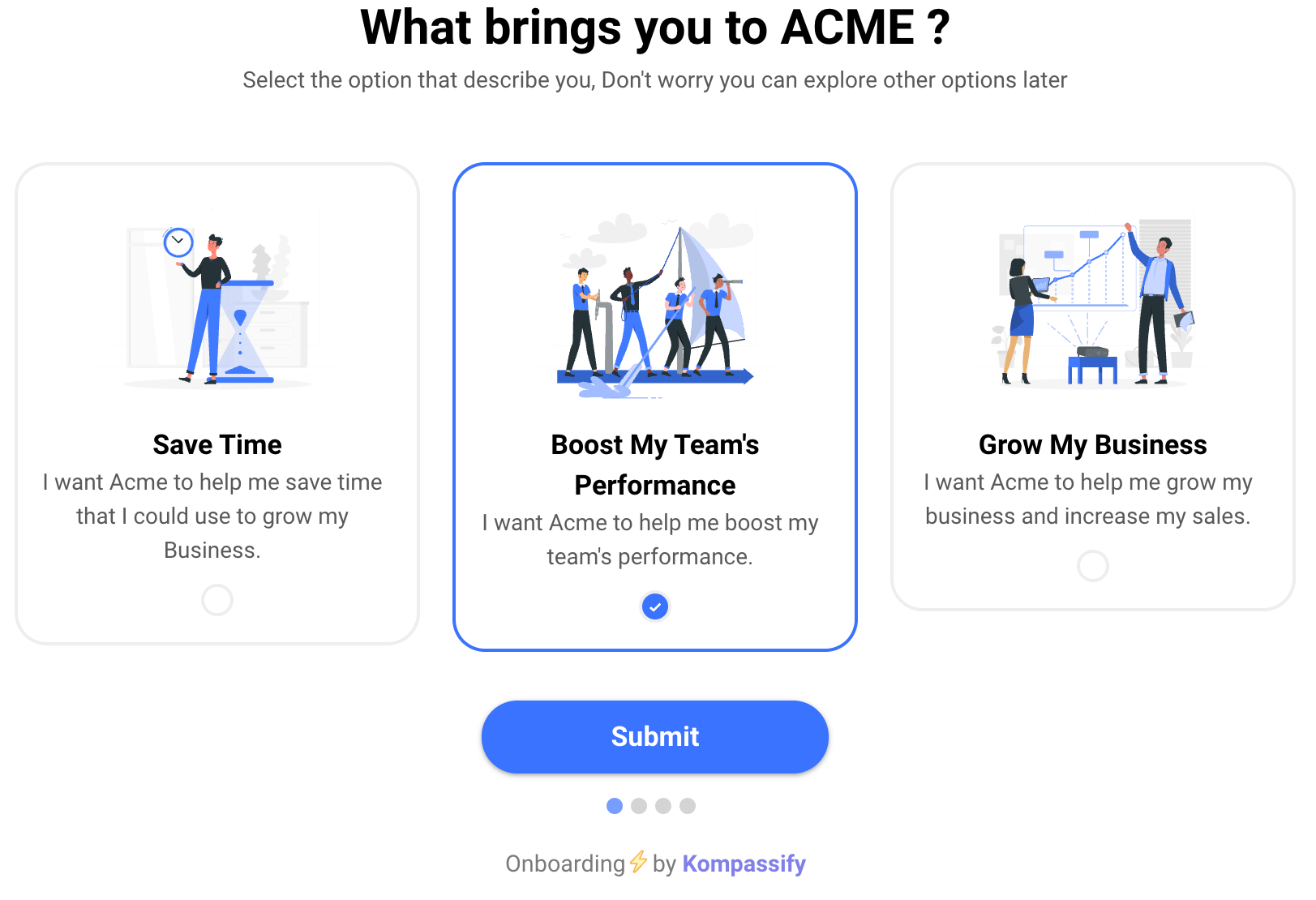
Welcome Screens
The first UI a user sees after signing up. Welcome screens can ask segmentation questions (role, use case, primary goal) and use answers to personalize the entire subsequent walkthrough. Shopify, for example, tailors its full dashboard setup based on answers given at this first step.
-
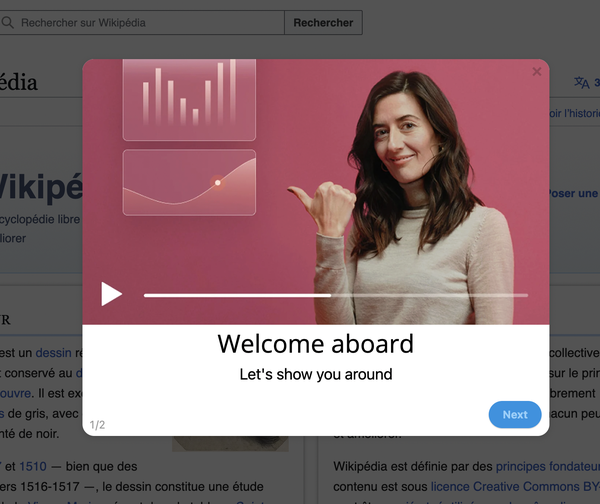
Explainer Videos Within Flows
Short in-app videos (60–120 seconds) embedded within a walkthrough step to demonstrate a concept before asking the user to perform the action themselves. Works well when a feature is too complex for a text tooltip alone.
Pro tip: The most effective walkthroughs combine two or three of these patterns rather than relying on a single format. A welcome screen that segments users feeds into a personalized tooltip sequence, which ends with an onboarding checklist, this layered approach drives both completion and depth of engagement.
How to Create a Product Walkthrough: 6-Step Framework
Here is the framework that consistently produces effective walkthroughs, regardless of product complexity or team size.
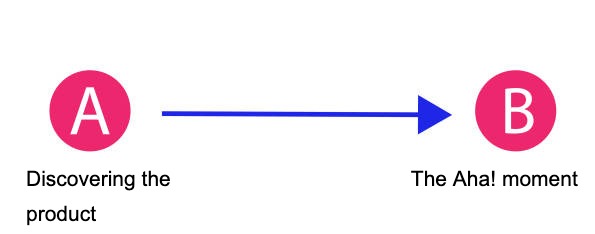
1. Identify Your Aha Moment
Before you design a single tooltip, you need to know exactly where you are taking users. The aha moment is the specific point at which a user first understands the real value of your product, the moment they think "this is exactly what I needed."
For Asana, it might be the moment a user creates their first task and assigns it to a teammate. For Twitter, research found that users who follow at least 20 accounts in their first three days are significantly more likely to become regular users, so their entire onboarding is structured around reaching that milestone.
Dig into your analytics. Look at cohorts of users who stayed versus those who churned. What actions did retained users take in their first session that churned users did not? That gap almost always points directly to the aha moment your walkthrough should be targeting.
2. Map the Barriers Between Sign-Up and the Aha Moment
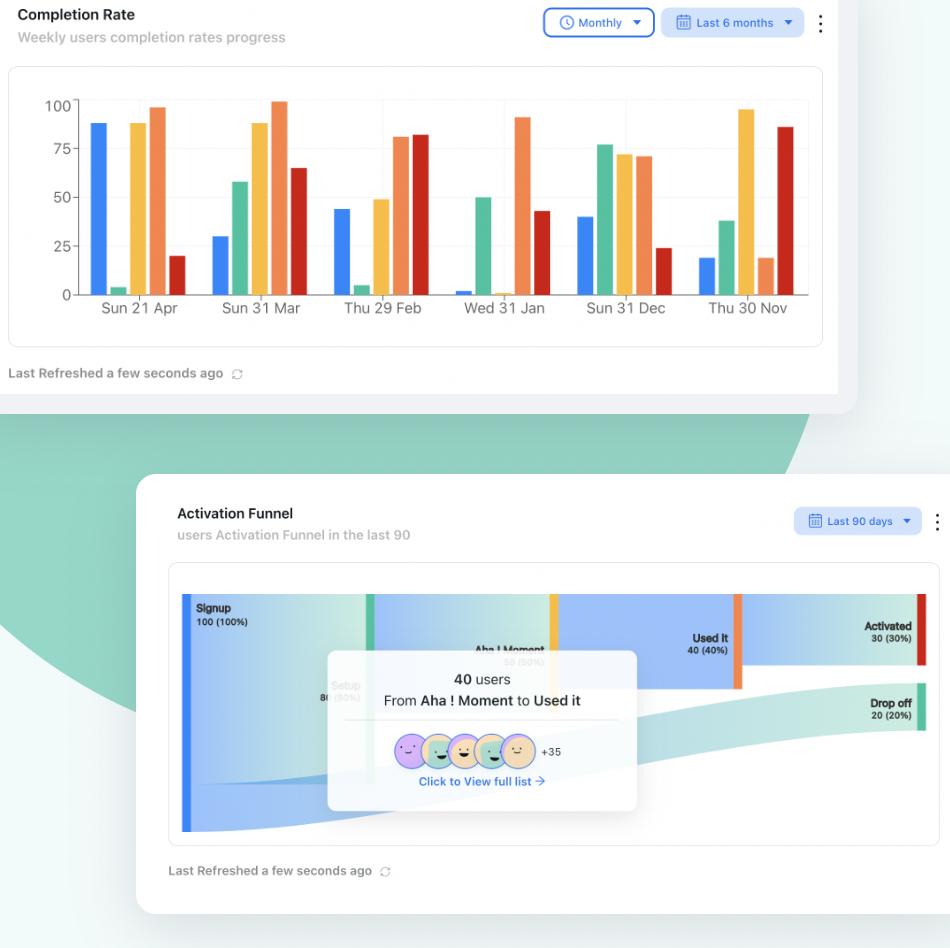
Once you know where you need to take users, identify what stands in the way. Funnel analysis is indispensable here. If 2,200 users complete step one of your onboarding flow but only 855 reach step two, that drop is telling you something critical about where friction lives.
Common barriers include: users not knowing where a key feature is, not understanding why a required step matters, missing a prerequisite action, or being put off by unfamiliar terminology. Qualitative user research, even just watching five people use your product for the first time, surfaces 80% of usability issues and clarifies which barriers are most worth addressing in your walkthrough.
3. Segment Your Users and Personalize the Flow
A one-size-fits-all walkthrough is a mediocre walkthrough. Different users come to your product with different goals, different levels of technical confidence, and different use cases. Showing everyone the same linear flow means most people will encounter steps that are either irrelevant or too advanced.
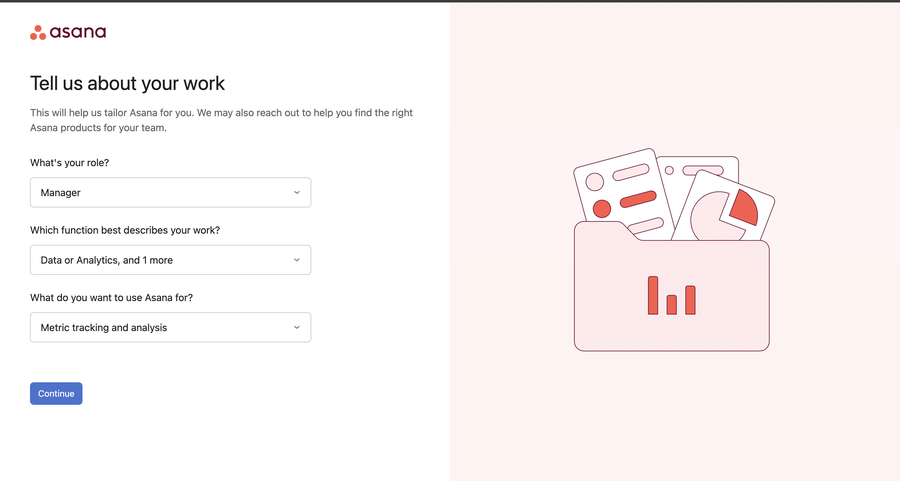
The most effective approach is to ask segmentation questions at sign-up, role, use case, or primary goal, and route users to a walkthrough tailored to those answers. Asana does this precisely: it asks users to select a role and then presents each segment a walkthrough that highlights the features most relevant to their specific work.
4. Choose Your UI Patterns and Design the Flow
Match your UI pattern choices to the complexity of the task and the sophistication of your users. For simple, linear flows: tooltip sequences work well. For complex setups requiring context first: a welcome modal followed by tooltips. For feature discovery that should not interrupt workflow: hotspot beacons. For complex new features: a short explainer video before asking the user to act.
Design principles that apply regardless of format: keep copy tight and jargon-free, make each CTA crystal clear, ensure the visual style of your walkthrough is consistent with your product's design language, and always include a visible skip option. Forcing users through a walkthrough they did not ask for creates friction, especially for returning or experienced users.
5. Build, Launch, and Set Contextual Triggers
Think carefully about when your walkthrough fires. Not all walkthroughs should launch automatically on first login. The most effective ones are triggered by specific user behavior, the first time someone clicks into a feature they have not used before, or when they hit a point in a setup flow where analytics show users commonly get stuck.
Contextual triggers dramatically outperform time-based ones. A walkthrough that appears when a user needs it feels helpful. One that fires on a schedule feels like an interruption. Also consider what happens when a user abandons mid-flow: can they resume where they left off? Is the walkthrough accessible from a help or resource panel at any time?
6. Measure, Iterate, and Improve
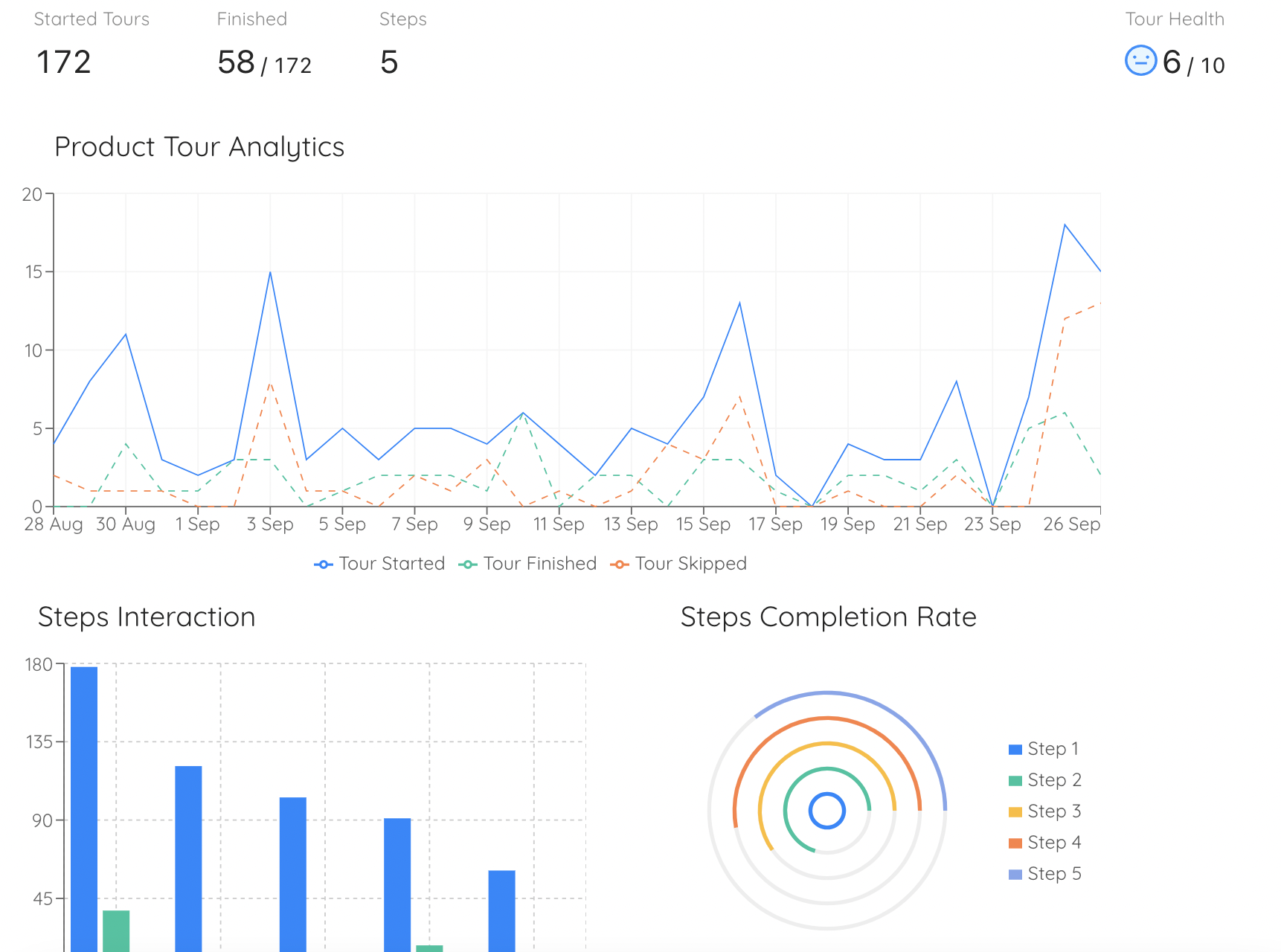
Your walkthrough is not finished when it goes live. It is just beginning. Set up tracking for completion rate, step-level drop-off, time to first key action, and downstream activation and retention metrics.
Look at where users leave the flow. A step with high drop-off is either too long, too complex, or unclear. Run A/B tests: different copy, different UI patterns, different trigger moments. Even small changes, a clearer CTA, a reordered step, adding a progress bar, can meaningfully shift completion rates. Treat your walkthrough exactly like a product feature: ship, measure, learn, iterate.
10 Product Walkthrough Best Practices
These are the principles that separate walkthroughs that convert from ones that get skipped, abandoned, or resented. Apply as many as possible, each one compounds on the others.
1. Keep it to 3–7 steps maximum
Every additional step is another opportunity for a user to give up. The longer a walkthrough runs, the more it starts to feel like an obligation rather than a help, and users will either rush through it without absorbing anything or abandon it entirely. Ruthlessly cut anything that does not directly move a user toward their aha moment. If you cannot articulate exactly why a step needs to be in the flow, it should not be there. For complex products with multiple distinct feature areas, the answer is not a longer walkthrough. Build several shorter, focused ones instead, each triggered at the relevant moment in the user's journey.
2. Lead with value, not features
There is a critical difference between telling users what to click and telling users what they will gain. Most walkthroughs fall into the trap of narrating the interface: "click the Tasks button," "select a due date," "invite a team member." These instructions describe actions, not outcomes, and users who do not understand why they are doing something are far less likely to do it, or remember to come back. Reframe every step around the result: "assign your first task so your team knows exactly what they need to do today." The action is the same; the motivation is entirely different.
3. Personalize by role or goal
Users arrive at your product with different jobs to be done. A marketing manager using a project tool has different priorities than a software engineer using the same tool. If you show both of them the same walkthrough, you will be wasting the first person's time with irrelevant steps or confusing the second with context that does not apply to them. The stakes are higher than most teams realize: Zendesk research found that 90% of consumers say they are willing to spend more with companies that personalize their experience. Asking a single segmentation question at sign-up (role, team size, primary use case) takes seconds and gives you everything you need to route users into a walkthrough that feels like it was built specifically for them. That relevance alone significantly increases completion rates.
4. Always offer a skip option
Confident users, returning users, and power users will always resent being forced through a guided flow they did not ask for. If there is no way to dismiss the walkthrough, the message you are sending is: "we do not trust you to figure this out." That is not a great first impression. A clearly visible skip option costs you nothing with users who need the guidance. They will stay in the flow anyway. But it dramatically improves the experience for users who do not, and respecting that confidence builds genuine goodwill from the very first interaction.
5. Use contextual triggers, not timers
The timing of a walkthrough matters as much as its content. A flow that appears when a user is actively trying to do something (clicking into a new feature for the first time, reaching a setup step where data shows users commonly drop off) feels like a helpful nudge. A flow that fires because it has been three days since sign-up, regardless of what the user has or has not done, feels like an interruption. Behavioral triggers require a little more setup, but the difference in how they land is substantial. Users should feel like your product is paying attention to them, not running on a schedule.
6. Add progress bars and checklists
The psychology here is simple: people like completing things. A progress bar that shows "Step 2 of 5" gives users a concrete sense of where they are and how close they are to being done, and that proximity to the finish line is a powerful motivator to push through. Onboarding checklists work the same way at a higher level, showing users all the tasks they need to complete to get fully set up, with each completed item providing a small sense of accomplishment. The partially-completed checklist is itself a re-engagement tool: users who see three out of five items done are more likely to come back and finish than users who have no visible record of their progress.
7. Write like a human, not a manual
Walkthrough copy is one of the most under-invested parts of onboarding, and it shows. Jargon-heavy, passive-voice instructions feel like reading a terms-of-service agreement: technically informative, emotionally inert. Every tooltip, modal, and checklist item should be written the way you would explain something to a smart colleague who is using your product for the first time. One idea per step. Short sentences. Active verbs. If it sounds stilted when you read it aloud, rewrite it. The copy in your walkthrough is often the first real conversation your product has with a user. Make sure it sounds like one.
8. Make walkthroughs re-accessible
Users do not always have the bandwidth to complete a walkthrough when it first appears. They may be exploring quickly, they may be in a meeting, or they may simply want to try things on their own before coming back for guidance. If your walkthrough disappears after the first dismissal and cannot be found again, you have lost that moment forever. Link every walkthrough from a persistent resource center, a help menu, or a "getting started" section of the dashboard. Users who can revisit guidance on their own terms are more likely to actually use it, and less likely to raise a support ticket when they get stuck.
9. Keep design consistent with your product
Your walkthrough UI (the tooltips, modals, progress bars, and beacons) should feel like a natural extension of your product's visual design, not a layer that was dropped on top of it. When the fonts, colors, border radii, and button styles in your walkthrough diverge from your actual product, it creates a subtle but damaging sense of inconsistency. Users notice it, even if they cannot name it, and it erodes trust at exactly the moment you are trying to build it. Match your design system closely, and if you are using a no-code walkthrough tool, make sure it supports sufficient visual customization to do so.
10. Update after every significant product change
A walkthrough that references a button that has been moved, a feature that has been renamed, or a flow that no longer exists is worse than having no walkthrough at all. It actively misleads users and creates support requests instead of preventing them. Product walkthroughs decay. Every time your UI changes significantly, your walkthroughs need to be reviewed and updated. The simplest way to manage this is to assign walkthrough ownership to a specific person on your product or growth team, include walkthrough reviews in your standard feature release process, and audit all active walkthroughs at least once a quarter.
Real-World Product Walkthrough Examples
Theory is useful. Examples are better. Here are five products whose walkthroughs consistently get praised for getting the fundamentals right.
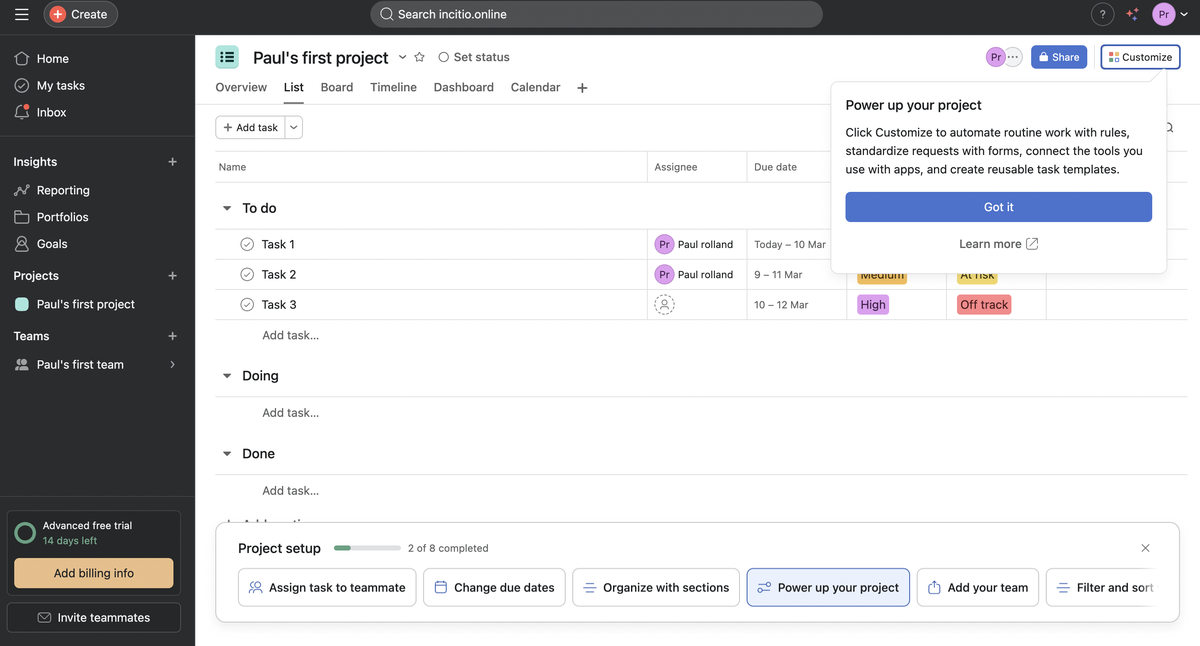
Asana: role-based walkthroughs done right
When a new user signs up for Asana, the very first thing the product does is ask them to select a role (project manager, team member, marketing professional, developer, and others). This is not a cosmetic question. The walkthrough that follows is genuinely different depending on the answer, highlighting the features, terminology, and workflows most relevant to how that specific type of person will actually use the tool. A project manager is shown how to create projects and assign tasks. A developer is shown how to integrate with their existing tools. Neither person has to sit through steps that are irrelevant to their job.
Asana also uses hotspot beacons well. Rather than assuming users will discover features like due dates or priority flags on their own, it places pulsing indicators on them at the right moment, with short contextual explanations of what each one does and why it matters. This keeps the walkthrough feeling light while ensuring no critical capability goes unnoticed.
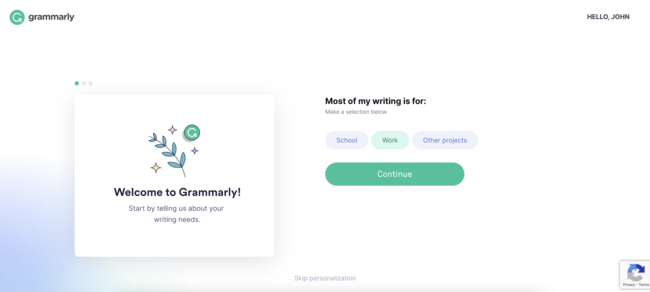
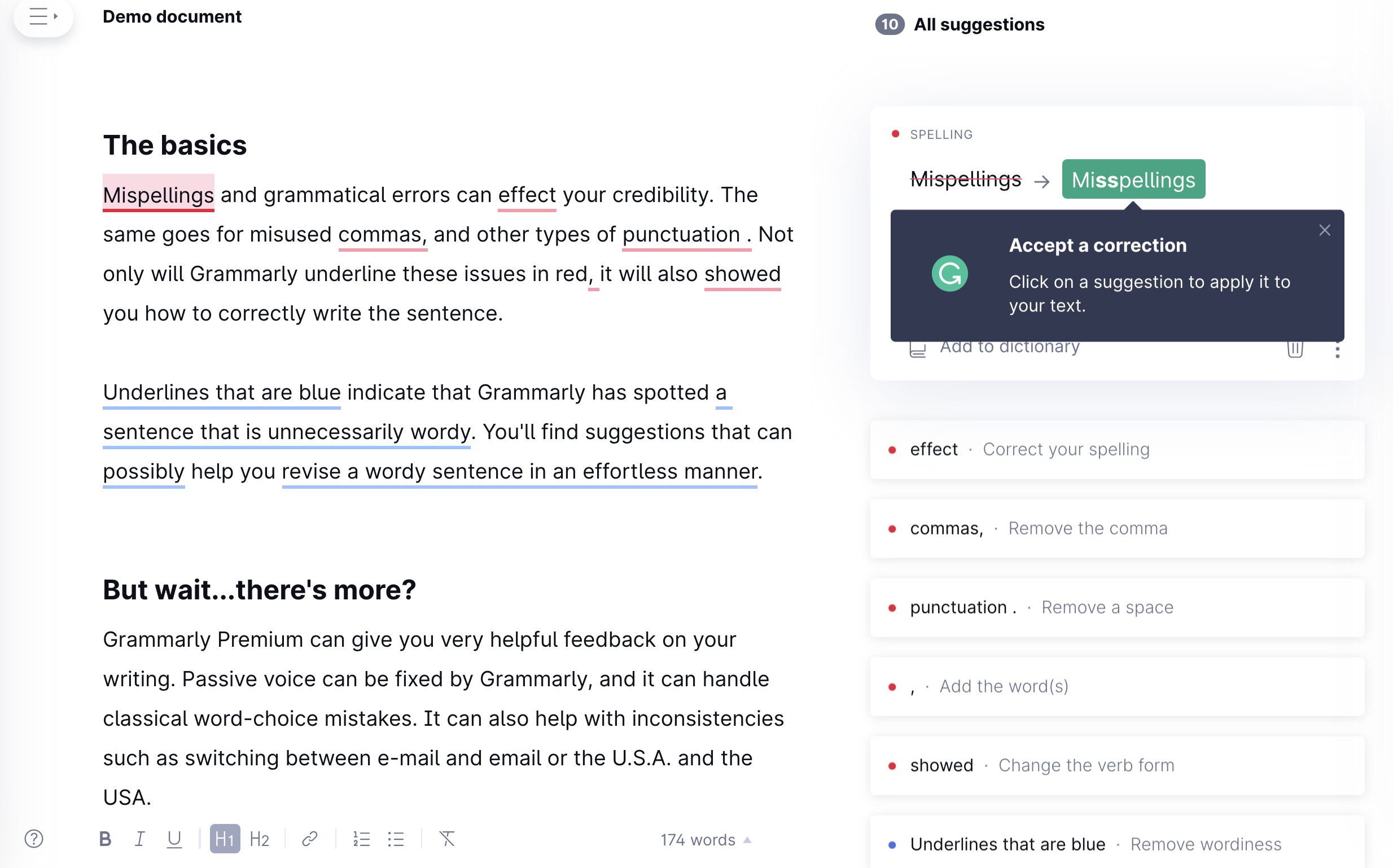
Grammarly: intuitive onboarding with predefined examples
Grammarly has one of the most intuitive user interfaces that I have experienced, and they have nailed their user onboarding.
First they start with a welcome message and try to identify the persona of their new user
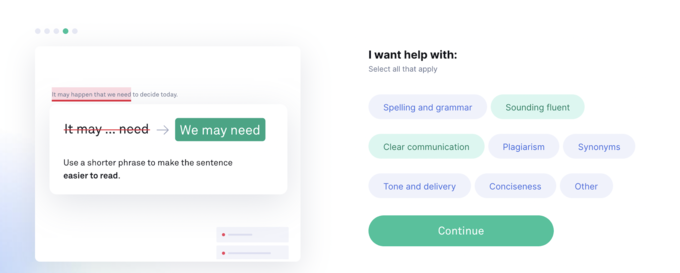
Then they follow up with a quick 4 step tour to explain their key features.
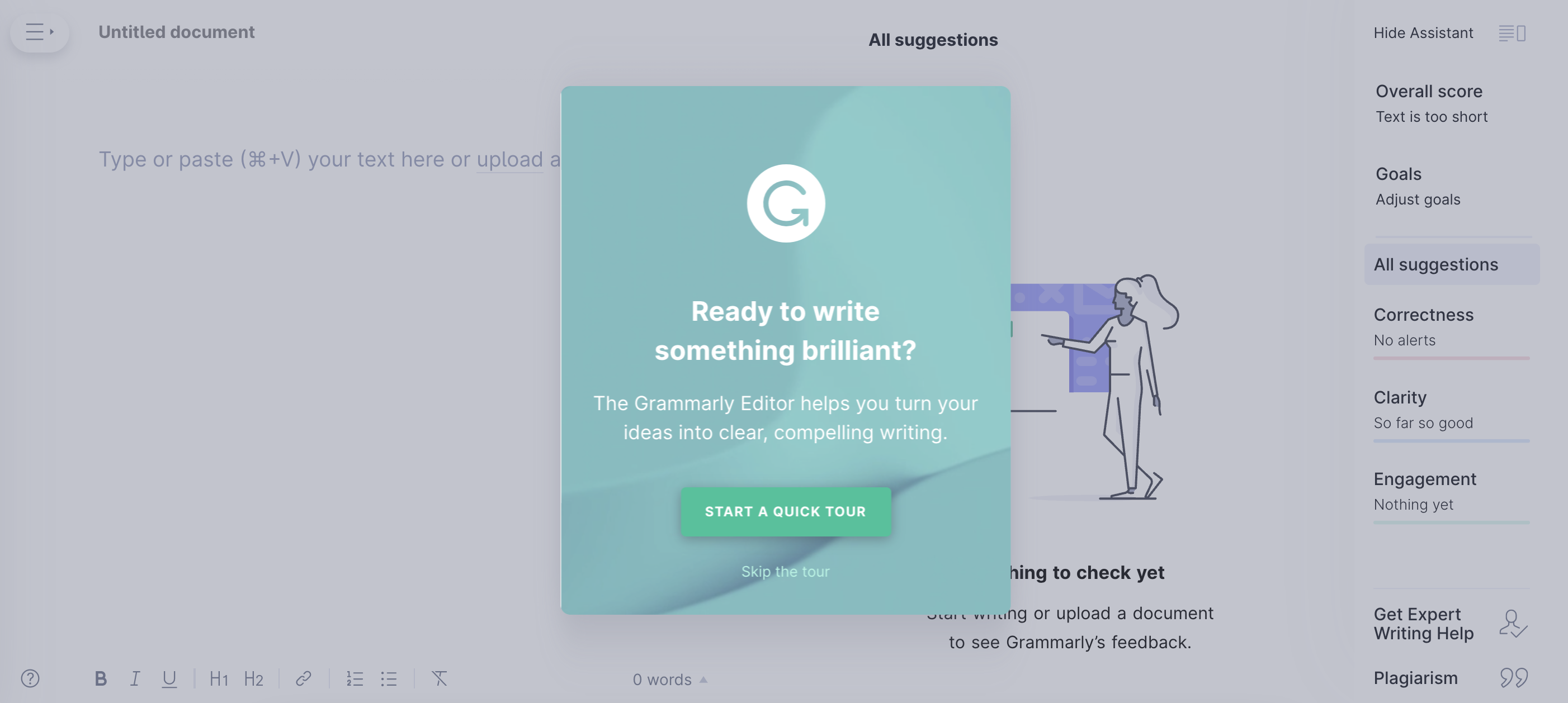
And a predefined document with tooltips to ease the learning curve.
Slack: help exactly when you need it
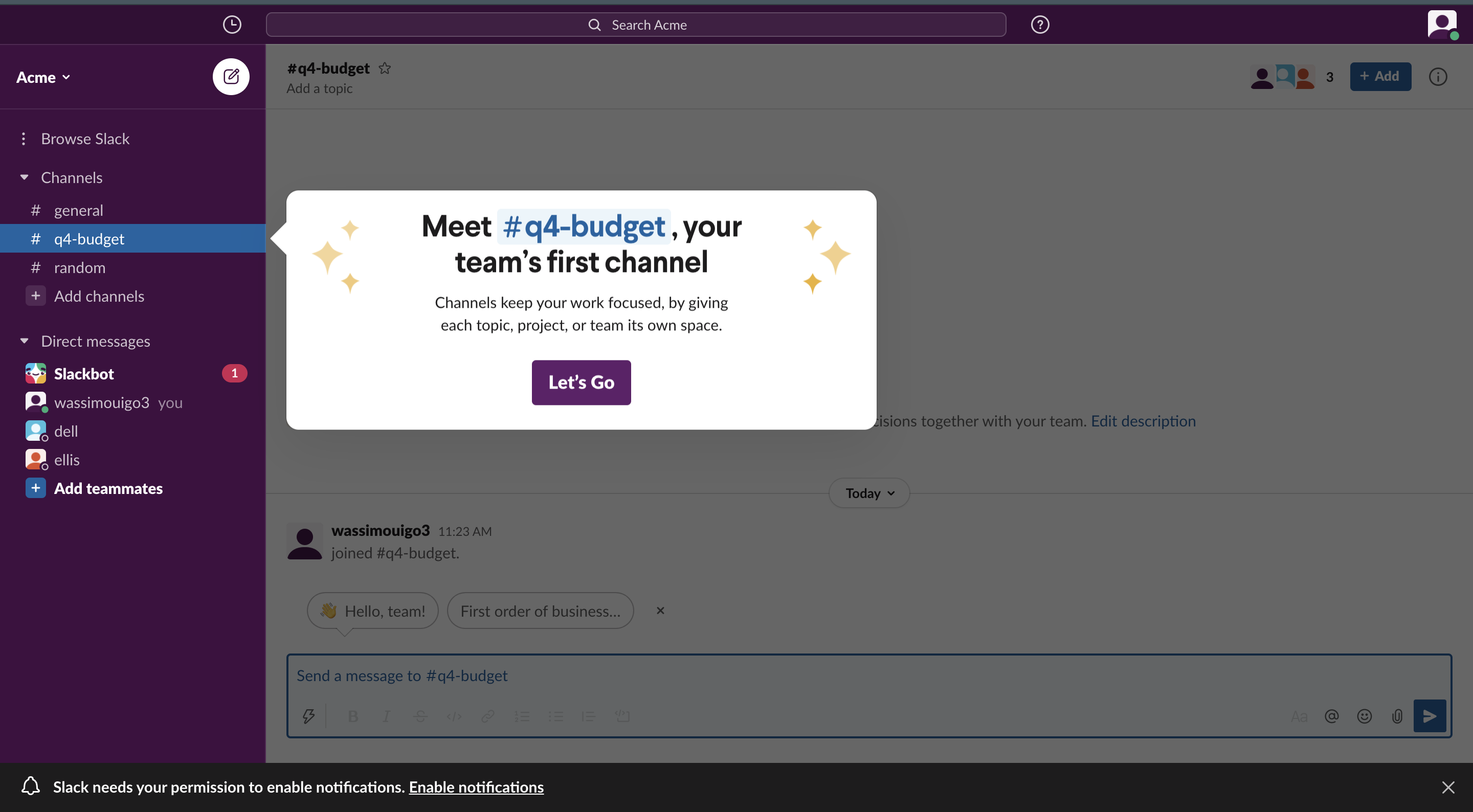
Slack's onboarding stands out because of what it does not do. It does not front-load new users with a long guided tour of every feature on their first login. It does not assume that everyone signing up needs the same level of hand-holding. Instead, Slack's guidance is almost entirely contextual: tips, tooltips, and short walkthroughs appear the first time a user encounters a feature or performs an action, at the exact moment they are most relevant.
The result is an onboarding experience that feels organic rather than scripted. Users who already know how to use Slack barely notice any guidance at all. Users who are new to it get exactly the help they need, precisely when they need it. This approach requires more sophisticated triggering logic than a simple linear walkthrough, but the payoff in user experience is significant. It treats users as capable people rather than students who need to be walked through a curriculum.
Duolingo: micro-motivations and learning by doing
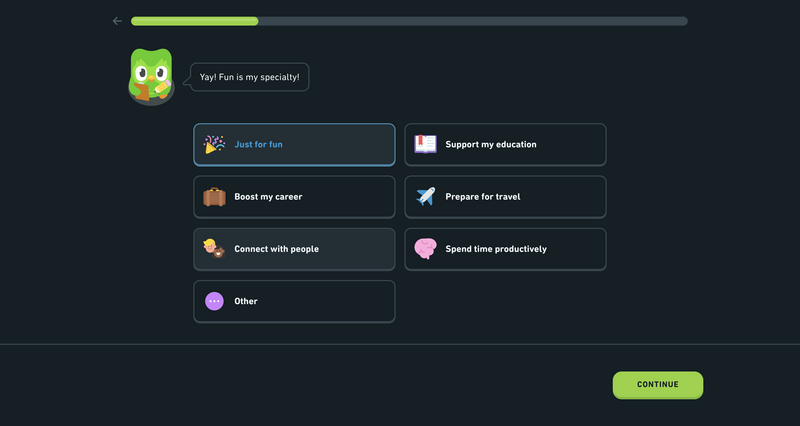
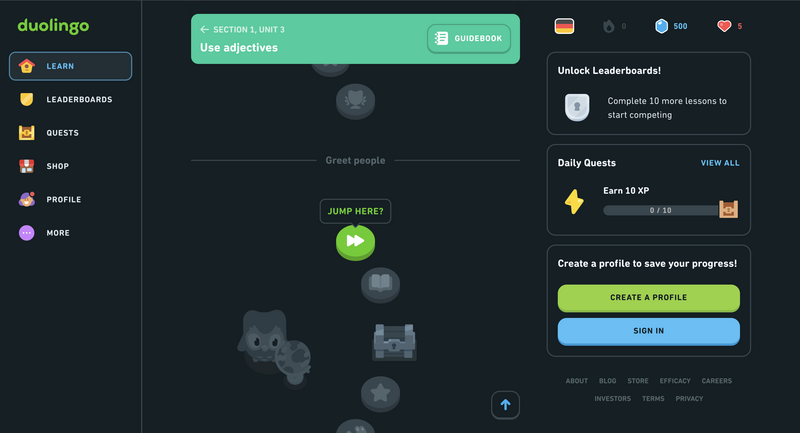
Duolingo's onboarding is one of the most studied in consumer software, and for good reason. From the very first screen, users are not told about the app. They are doing the thing the app is for. There is no feature tour, no explainer video, no list of tips. You pick a language, you pick a goal, and within thirty seconds you are completing your first lesson. The walkthrough is the product experience itself.
What makes this work is the layered motivation system built into every step: progress bars that fill as you advance through a lesson, streaks that reward daily usage, completion badges that mark milestones. Each of these is a micro-motivation: a small signal that you are making progress and that progress is worth continuing. For SaaS products, the lesson is clear: if you can make the first session feel like an accomplishment rather than a setup task, you dramatically increase the odds that users will return.
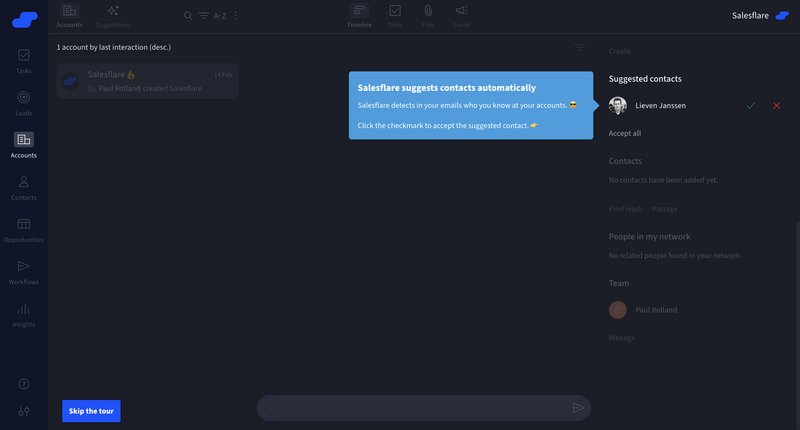
Salesflare: letting users choose their own pace
Salesflare takes an unusually user-respecting approach to onboarding. After the welcome screen, users are explicitly given a choice: follow a guided walkthrough, or explore the product independently. This single moment of agency (being asked rather than being told) sets a tone that carries through the entire experience. Users who opt for guidance get a well-structured walkthrough. Users who prefer to explore can do so without any friction, and the walkthrough remains available from the sidebar whenever they want it.
Salesflare also uses an incentivized onboarding checklist to drive deeper product engagement during the trial period. Completing setup tasks (connecting your email, importing contacts, logging your first deal) unlocks additional trial days, extending access from the default 7 days up to 30. This turns the checklist from a passive to-do list into an active incentive, and gives users a compelling reason to engage with the product more thoroughly before their trial expires.
The 7 Biggest Product Walkthrough Mistakes
Research by Wyzowl found that 80% of people have deleted an app because they did not know how to use it. Not because the product was bad. Because nobody showed them what to do. Every mistake in this section is a variation of the same root problem: onboarding that fails users before they have had a real chance to experience the product.
Treating onboarding as an afterthought
This is the root cause of most bad walkthroughs. When onboarding is designed after the product is built (rushed in before a launch, or tacked on after a few months of complaints) it shows. The flow feels disconnected from the actual product experience, the steps do not map cleanly onto the UI, and the copy feels like it was written by someone who barely used the product. Onboarding should be treated as a first-class product feature, designed in parallel with the core functionality and owned by someone (ideally a product manager or growth lead) who is accountable for activation metrics. If nobody owns onboarding, nobody improves it.
Showing everything instead of the right things
It is tempting, especially for teams who have worked hard on a product, to want to show users everything it can do. The instinct is understandable but counterproductive. A walkthrough that tries to cover every feature overwhelms users, dilutes the impact of the things that actually matter, and buries the aha moment under a pile of steps that should not be there. The discipline required is ruthless prioritization: identify the two or three actions that most reliably lead to activation, and build your walkthrough around those. Everything else can be surfaced later, contextually, when users are ready for it.
Ignoring user segmentation
A generic walkthrough is a mediocre walkthrough. When every user (regardless of their role, their use case, or their level of experience) sees the same flow, most of them will encounter steps that feel irrelevant, confusing, or too basic. The cost of ignoring segmentation is not just a worse experience; it is measurably lower completion rates and slower activation. The solution does not have to be complicated. Even a single question at sign-up ("what are you primarily using this for?") gives you enough to route users into meaningfully different paths. That small investment compounds into significantly better outcomes.
No skip option
A walkthrough without a skip option sends a message: we do not trust you to use this product without being supervised. For experienced users, returning users, and anyone who simply prefers to explore on their own terms, this creates immediate frustration. They will not sit through steps they do not need. They will click frantically for a way out, or worse, leave entirely. A clearly visible skip or dismiss option costs nothing with users who need the guidance. But it is essential for the segment who does not, and treating those users with respect is part of building a product people actually enjoy using.
Only focusing on the first session
Many teams design their walkthrough entirely around the first login and never think about what happens after that. But activation is rarely a single-session event. Users often need multiple exposures to a product before they fully understand its value, especially for complex tools with a longer learning curve. If your walkthrough fires once and disappears, users who drop off mid-flow have no way to resume. Users who missed key steps have no way to go back. Design for the full journey: make walkthroughs resumable, link them from a persistent resource center, and trigger follow-up nudges when users return without having completed key setup tasks.
Time-based triggers instead of behavioral ones
"Send an in-app nudge on day 3" sounds like a reasonable onboarding strategy, but it fundamentally ignores what the user has actually done in the product. A user who has already completed setup and activated three features on day 1 does not need a day-3 prompt telling them to get started. A user who signed up, never came back, and returns on day 5 needs a very different message than one who has been active every day. Behavioral triggers (based on what users have done, what they have not done, and where they are in the product) are more relevant, more timely, and significantly more effective. They are also harder to set up, which is exactly why most teams default to time-based ones and leave a lot of activation on the table.
Never iterating after launch
Shipping a walkthrough is not the end of the work. It is the beginning of it. The first version of any walkthrough is a hypothesis: this is what we think users need, in this order, at this moment. The data you collect after launch will almost always show you that the hypothesis was partially wrong. Step three has a 60% drop-off rate. The second tooltip is dismissed within two seconds. Users who skip the walkthrough activate at the same rate as those who complete it. Every one of those data points is an opportunity to improve. Teams that iterate on their walkthroughs the way they iterate on their product features consistently see better activation numbers than those who treat onboarding as a one-time project.
How to Measure Product Walkthrough Success
You cannot improve what you do not measure. Here are the metrics that matter most for evaluating whether your walkthrough is doing its job.
| Metric | What It Tells You | What to Do If It's Low |
|---|---|---|
| Completion Rate | The percentage of users who complete all steps | Identify the highest drop-off step and simplify or reorder it |
| Step-Level Drop-off | Exactly where users abandon the walkthrough | Rewrite the copy, simplify the required action, or remove the step entirely |
| Time to First Key Action | How long it takes users to complete their first meaningful action | Shorten the walkthrough; cut steps that don't lead directly to the aha moment |
| Feature Adoption Post-Walkthrough | Whether users who completed the walkthrough go on to use the featured functionality | Ensure the walkthrough ends with an immediate action, not just information |
| Support Ticket Volume | Whether the walkthrough is reducing inbound queries on covered topics | Revisit copy clarity; add links to help docs for complex steps |
| Trial-to-Paid Conversion | Whether users who complete onboarding are more likely to convert | Check whether the walkthrough genuinely reaches the aha moment; compare converted vs churned cohorts |
Ready to Build Your First Walkthrough?
Kompassify lets you create personalized product walkthroughs, onboarding checklists, tooltips, and in-app announcements, without writing a single line of code. Free plan available.
Start for Free →Frequently Asked Questions
What is a product walkthrough?
A product walkthrough is an interactive, in-app experience that guides users step by step through the key actions they need to take to get value from your product. It uses UI elements like tooltips, hotspots, modals, progress bars, and checklists to guide users toward their aha moment: the moment they first understand what your product does for them.
How many steps should a product walkthrough have?
The sweet spot for most products is 3 to 7 steps. Every step should be directly necessary to move the user toward their aha moment, if you cannot justify why a step is in the flow, cut it. For complex products, create separate shorter walkthroughs per feature area rather than one long flow that covers everything.
When should you trigger a product walkthrough?
The four most effective trigger moments are: immediately after a new user signs up, the first time an existing user navigates to a feature they have not used before, immediately after a significant product update or new feature release, and when a user returns after a period of inactivity. Behavioral triggers consistently outperform time-based ones because the walkthrough appears exactly when it is most relevant.
What are the most important best practices for a product walkthrough?
The 10 best practices covered in this guide are: keep flows to 3–7 steps, lead with value not features, personalize by role or goal, always offer a skip option, use contextual behavioral triggers, add progress bars and checklists for momentum, write copy like a human not a manual, make walkthroughs re-accessible from a resource center, keep design consistent with your product, and update walkthroughs whenever your UI changes significantly.
How do I measure whether my product walkthrough is working?
The key metrics are: completion rate, step-level drop-off rate, time to first key action, feature adoption rate post-walkthrough, support ticket volume on covered topics, and trial-to-paid conversion rate. Track these for every walkthrough you build and use step-level drop-off data to prioritize what to iterate on next.
Should I build a product walkthrough myself or use a tool?
Custom-coding a walkthrough is possible but expensive and slow to iterate, every copy or logic change requires developer time. No-code tools like Kompassify let product managers and growth teams build, launch, and iterate on walkthroughs without engineering involvement, which means faster experimentation and better results based on real user data.